Book a room
Reserve Ponderosa or Sequoia — picking a day, a start and end time, and confirming.
The VIC's bookable spaces are the Ponderosa (seats 40, full A/V) and Sequoia (seats 80) conference rooms. Each room's page shows the days it's open, and you can book any start and end time inside its hours.
Before you start
- Account
- Signed in and Active.
- How far ahead
- Up to 12 months.
- Length
- Any start and end time, in 15-minute steps, inside the room's hours — a 45-minute meeting, or two hours plus setup.
- Cost
- None — rooms are included for tenants.
Step by step
- Open Bookings, or use Reserve a Conference Room on the dashboard.
- Pick a room and click Book.
- Choose a day from the calendar.
- Choose a Start time, then an End time. The End list runs only to closing or to the next booking, and shows how long each option is. Start times that are taken or already past are greyed out, and the day's existing bookings are listed underneath.
- Include your setup and teardown in the time you book — the room is held only for that time, and the next group may start right after you.
- Optionally add a title, the number of attendees, and any notes (setup needs, A/V, catering, accessibility) — building staff see the notes.
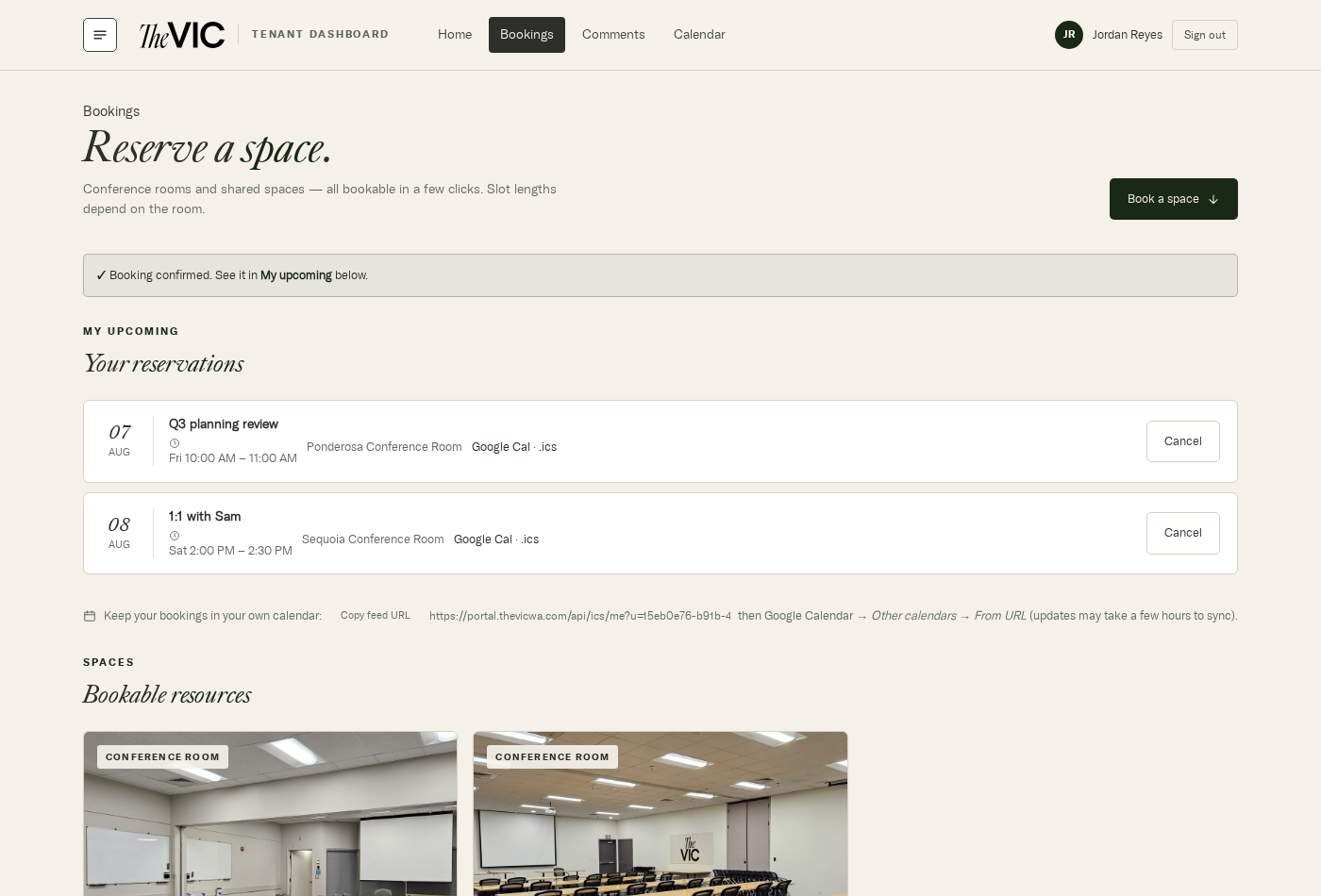
- Click Confirm reservation. You'll land back on Bookings with a confirmation banner and the reservation in My upcoming.
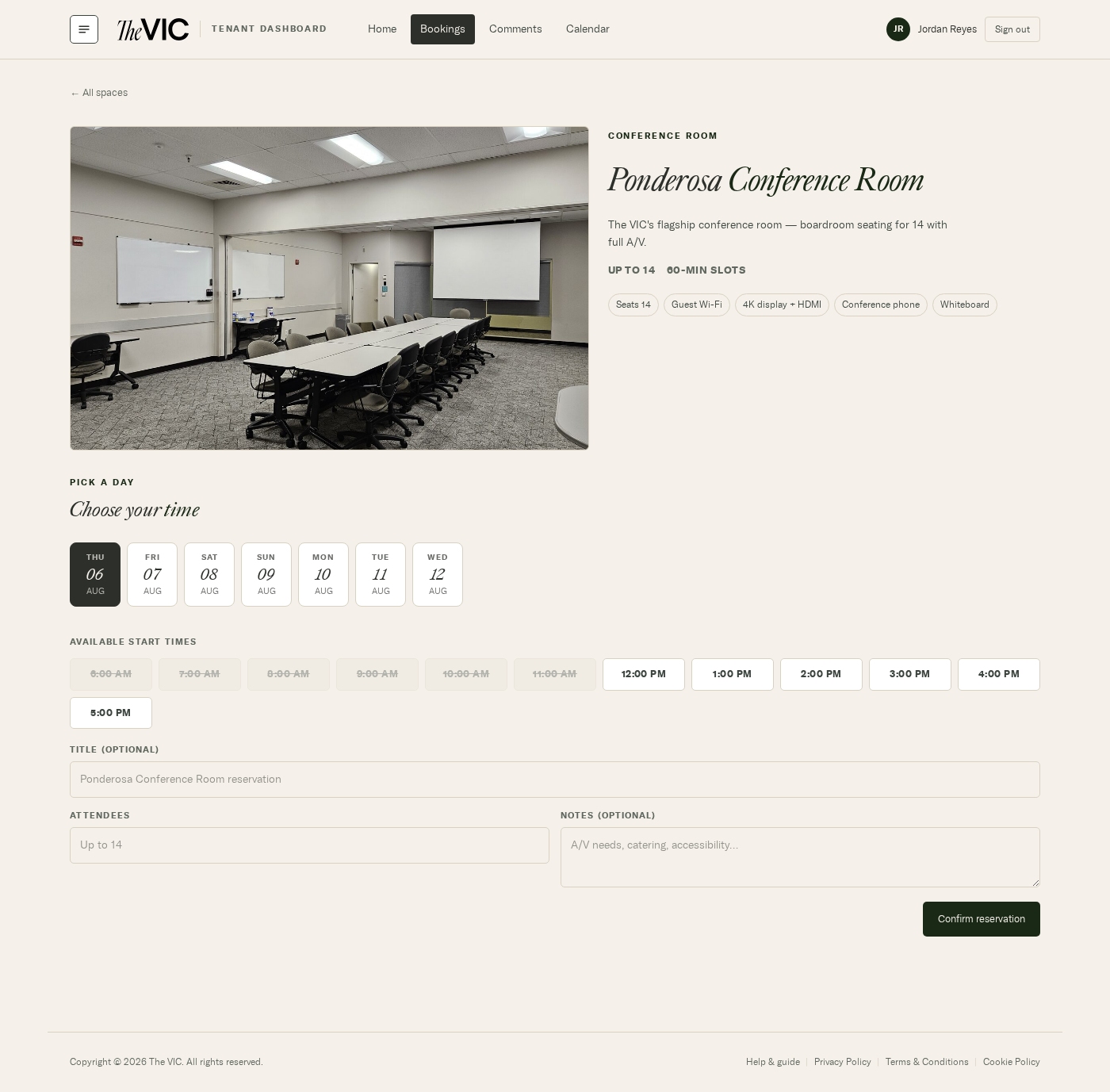
- Pick a day. The calendar opens on the current month; the arrows beside the month name step forward and back. You can book up to 12 months ahead — days outside that window, and days the room is closed, are greyed out and can't be selected.
- Start and End. Pick any start, then an end — the End list only offers times before closing or the next booking, and shows each option's length.
- Already booked lists the day's taken times. The note below it is the reminder to include your setup and teardown.
- Title is optional. Leave it blank and the room name is used.
- Attendees and Notes — the notes reach building staff, so flag setup, A/V or accessibility needs here.
- Confirm reservation books it. Nothing is held until you click this.
Rooms at a glance
| Room | Capacity | Features |
|---|---|---|
| Ponderosa | 40 | Guest Wi-Fi, 4K display + HDMI, conference phone, whiteboard |
| Sequoia | 80 | Guest Wi-Fi, wall display, whiteboard |
Every start time on a day is greyed out
WhyThe room is fully booked that day, or you're looking at today and the remaining hours have passed.
FixTry another day on the calendar, or the other room.
“Couldn't complete booking. Try again.”
WhySomeone else confirmed an overlapping time a moment before you did. The portal re-checks availability at the instant you confirm.
FixPick another time — the page reloads with current availability.
The Confirm button does nothing
WhyNo start time is free on that day, so there's nothing to confirm.
FixPick another day; a day with free time has a Start list you can open.
The end time you want isn't in the list
WhyThe End list stops at closing time, or where the next booking begins.
FixStart earlier, pick another day, or ask building staff if you need the room outside its hours.