RSVPing and the waitlist
Holding a spot, what happens when an event is full, and cancelling an RSVP.
Open any event to see its detail page. If it has room, a single click holds your spot and the portal emails you a confirmation.
RSVPing
- Open the event from Events or the calendar.
- Click RSVP — I'm going.
- The button flips to show you're going, and a confirmation email follows.
When an event is full
Events can carry a capacity. Once it's reached the page says Full — waitlist open and offers Join waitlist instead.
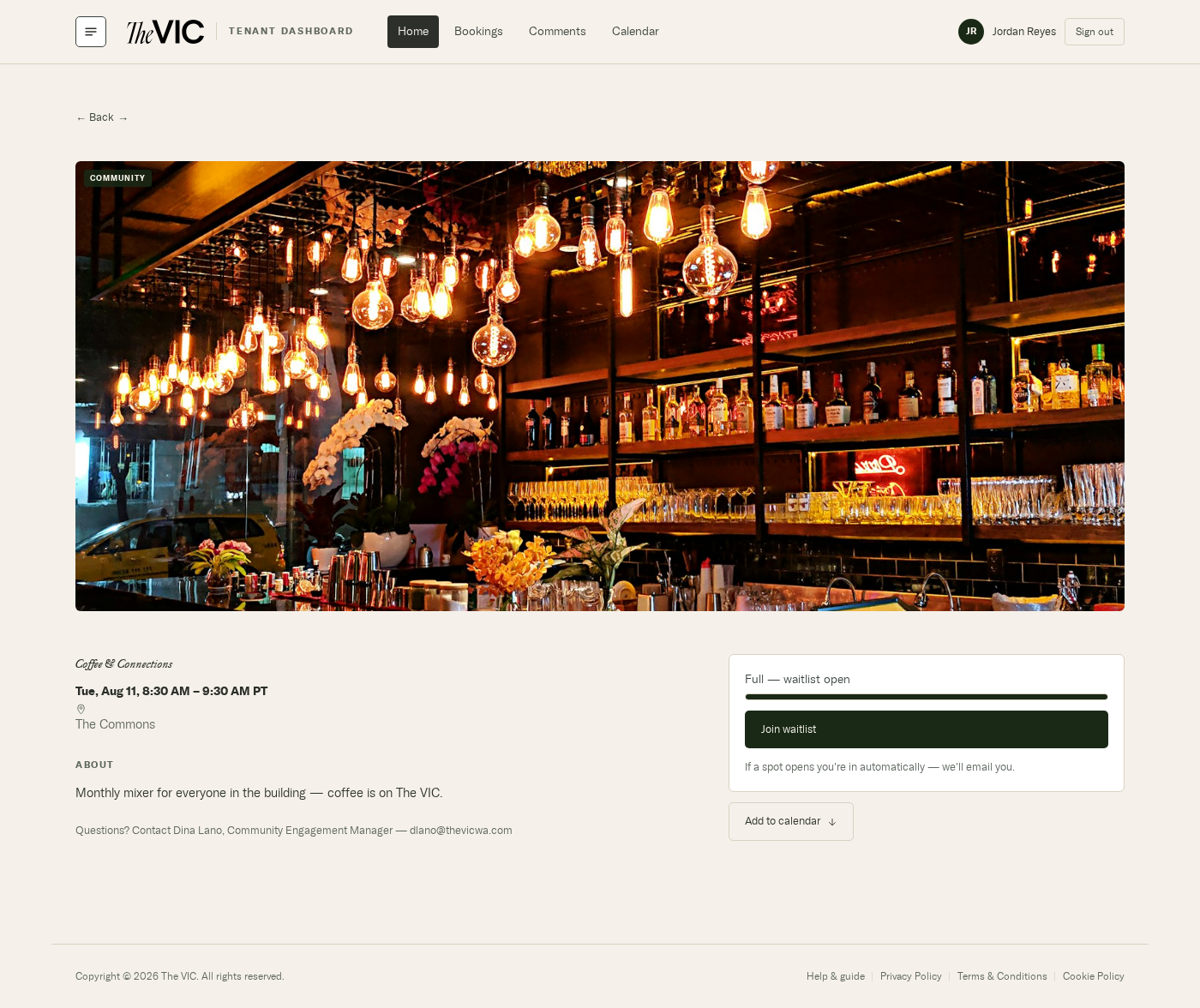
- Date, time and location — always in building (Pacific) time.
- Full — waitlist open. The bar shows how full the event is.
- Join waitlist. You're never queued silently — joining is always an explicit choice.
- Add to calendar works whether you're going, waitlisted, or neither.
Every state an RSVP can be in
- Not going + room left becomes GoingOne click. A confirmation email follows.
- Not going + event full becomes Waitlisted #nOnly if you choose Join waitlist — you're never queued silently. You're told your position.
- Waitlisted #1 + someone cancels becomes GoingAutomatic. You don't have to be watching, and you're emailed. Staff can also promote by hand.
- Going + you cancel becomes Not goingYour spot is released and the first person waiting is promoted immediately — which is why cancelling matters to someone else.
- Waitlisted + you cancel becomes Not goingYou leave the queue; everyone behind you moves up one.
How the waitlist works
- You join in order, and you're told your position when you join.
- If someone cancels, the first person on the list is promoted automatically — you don't have to be watching.
- Promotion sends you an email. Check it before assuming you're still waiting.
- Building staff can also promote someone by hand from the attendee roster.
Cancelling an RSVP
Open the event and click Cancel RSVP. Your spot is released and, if anyone is waiting, the next person is promoted immediately. Please do cancel if your plans change — it's the only way the waitlist moves.
“This one's full — join the waitlist on the details page.”
WhyYou tapped a quick RSVP from the calendar on an event that filled up in the meantime.
FixOpen the full event page, where Join waitlist is offered.
The RSVP control is locked or says you're awaiting approval
WhyYour account is Pending, or the event was cancelled.
FixCheck account status. A cancelled event shows a banner saying so.
No confirmation email arrived
WhyThe RSVP is still recorded — email is sent separately and can be delayed or filtered.
FixTrust the page, not the inbox: if it shows you're going, you're going. See Emails from the portal.